
Get Set Up Fast With the Go Pyesta APK Download

Ready to get the app on your Android device? This guide walks you through the complete Go Pyesta APK download and installation process, from enabling the right device settings to logging in for the first time — no guesswork, just clear steps from start to finish.
Before You Begin: What You’ll Need for the Go Pyesta APK Download
A few quick checks before starting the installation process can help everything go smoothly:
- A stable internet connection for downloading the file without interruptions
- At least 100MB of free storage to accommodate the app and its data
- An Android device running a supported OS version (Android 6.0 or higher is generally recommended)
- A registered Go Pyesta account, or be ready to register once the app is installed
- Device settings access, since installation requires enabling permissions not needed for Play Store downloads
Having these ready beforehand helps the entire process move without unnecessary interruptions.
Step 1: Enable Installation from Unknown Sources
Since the APK file is installed outside the Google Play Store, Android requires explicit permission before allowing this type of installation. Here’s how to enable it:
- Open your device Settings.
- Go to Security (or Apps & Notifications, depending on your device).
- Find the option labeled “Install Unknown Apps” or “Unknown Sources.”
- Select the browser or file manager app you’ll use to download the file.
- Toggle the permission on, allowing that specific app to install APK files.
This setting varies slightly depending on your Android version and device manufacturer, but the option is typically found within the same security-related menu. Once enabled, your device is ready to proceed with the download. If you haven’t already, it’s worth knowing how to confirm you have a genuine file before installing.
Step 2: Download the Go Pyesta APK File
With permissions enabled, you’re ready to download the file itself:
- Open your mobile browser and go to the official Go Pyesta website.
- Look for the download banner at the top of the homepage, which includes a Download button.
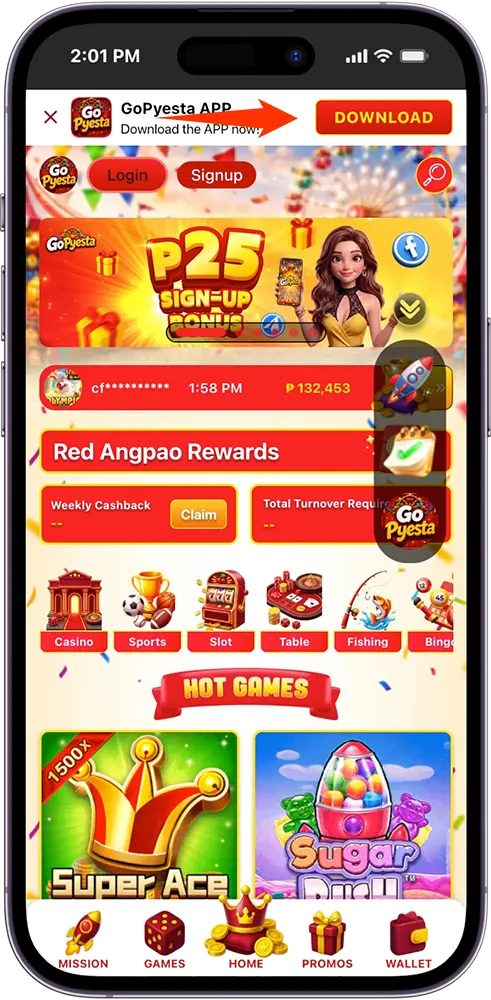
- Tap Download to begin the file transfer.
- Wait for the download to complete, keeping the browser open to avoid interrupting the process.
A progress notification typically appears in your device’s notification bar once the download starts, letting you track how much longer it will take before the file is ready to install.
Step 3: Locate the Downloaded File
Once the download finishes, the next step is finding the file on your device:
- Open your File Manager app (pre-installed on most Android devices).
- Go to the Downloads folder, where browser downloads are typically saved by default.
- Look for the file, usually named something like “GoPyesta.apk” or similar.
- Tap the file once located to begin the installation process.
If you can’t find the file right away, checking your browser’s download history (usually accessible through the browser’s menu) can also lead you directly to it.
Step 4: Install the APK File
With the file located, installation is the next step:
- Tap the APK file to begin.
- Review the installation prompt, which may display the permissions the app requires.
- Tap Install to proceed.
- Wait for the installation process to complete, which usually takes only a few seconds.
- Tap Open once installation finishes, or locate the app icon on your home screen.
If a security warning appears at this stage, it’s a standard Android prompt for apps installed outside the Play Store, not necessarily an indication of an issue, provided the file was downloaded from the official website.
Step 5: Open the App and Log In or Register
With the app installed, the final step is getting into your account:
- Tap the app icon to launch it for the first time.
- Select Login if you already have an existing account, or Register to create a new one.
- Enter your credentials or complete the registration form if you’re a new player.
- Complete any verification steps, if required.
- Access your dashboard once signed in, where games, promotions, and account tools become available.
At this point, the installation process is complete, and you’re ready to start exploring everything available on the platform.
Troubleshooting Common Go Pyesta APK Download Errors
Occasionally, the Go Pyesta APK download and installation process may not go as smoothly as expected. Here are common issues and how to resolve them:
“App Not Installed” Error
This typically happens due to insufficient storage, a corrupted download, or a conflicting older version already on the device. Try freeing up storage, re-downloading the file, or uninstalling any previous version before trying again.
Installation Blocked by Play Protect
Google Play Protect may flag sideloaded apps by default. If this occurs, review the warning, confirm the file was downloaded from the official website, and choose to proceed if you’re confident in the source.
Download Fails or Stops Midway
This is often caused by an unstable internet connection. Switching to a stronger Wi-Fi connection or restarting the download usually resolves this.
“Parse Error” or File Won’t Open
This can indicate an incomplete or corrupted download. Deleting the file and downloading a fresh copy from the official website typically fixes this.
Permission Toggle Not Showing Installation Option
Double-check that “Install Unknown Apps” is enabled specifically for the browser or file manager app being used to install the file.
What to Do After Your Go Pyesta APK Download
Once the app is installed and you’re logged in, a few quick steps help set things up properly:
- Enable notifications to stay updated on promotions, transactions, and account activity.
- Review your account details to confirm everything is accurate after registration or login.
- Explore available games and promotions to get familiar with what’s accessible through the app.
- Check for app updates periodically, since sideloaded installations don’t update automatically through the Play Store.
Taking these steps after installation helps ensure the app runs smoothly and that you’re getting the most out of the mobile experience going forward.

Ready to Play
With the Go Pyesta APK download complete and your account set up, everything you need is now just a tap away. From here, staying updated and keeping the app running smoothly is all it takes to enjoy a consistent, hassle-free mobile gaming experience.
Frequently Asked Questions (FAQs)
Do I need to enable “Unknown Sources” every time I install the app?
No. Once enabled for the browser or file manager you used, the permission typically stays active for future installations unless manually turned off or reset through a device update.
Can I reinstall using the same downloaded APK file if I delete the app later?
Yes, as long as the file is still saved on your device and hasn’t been replaced by a newer version. Simply locate it again in your File Manager and repeat the installation steps.
Does it matter if I download over Wi-Fi vs. mobile data?
Both work, but Wi-Fi is generally recommended for a faster, more stable download, especially if mobile data has limited speed or data caps.
How long does the entire download-to-login process usually take?
With a stable connection, the full process — from downloading the file to logging in — typically takes just a few minutes.
What should I do if the app doesn’t open after installation?
Try restarting your device, then relaunch the app. If the issue persists, uninstall and reinstall using a freshly downloaded file from the official website.
Every Day is a Winning Fiesta
Join Go Pyesta and explore casino entertainment, sports betting, slots and promotions — all in one place.